Real screens from the Speed Plus 9 manual. Open any image to inspect the details.
01 / Your mobile working day, at a glanceACTUAL PRODUCT SCREEN
View full size ↗Farata Home: today's sales with the 14-day bars, the Sale, Touch POS, Receipt and Payment shortcuts, and To receive, To pay, Cash in hand and Bank.
02Choose standalone or connected working+
02 / Choose standalone or connected workingACTUAL PRODUCT SCREEN
View full size ↗The Farata set-up screen: start on this phone alone with a company name, or connect to the software already on your PC with its licence number and partner code.03Touch billing in Farata+
03 / Touch billing in FarataACTUAL PRODUCT SCREEN
View full size ↗Touch POS on a phone: item tiles with the group strip and running total, and the Bill tab with quantity buttons and Save & print.04A supplier bill becomes a reviewed purchase+
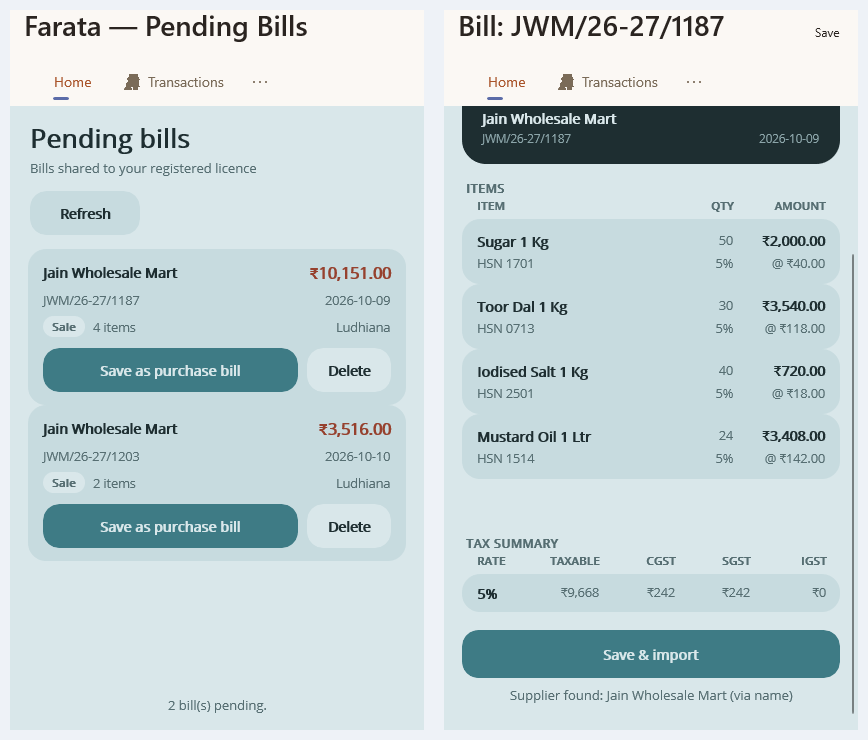
04 / A supplier bill becomes a reviewed purchaseACTUAL PRODUCT SCREEN
View full size ↗Farata Pending Bills: two bills a wholesaler sent to this shop, and the Invoice preview of one of them with its items, tax summary and the Save & import button.05Prepare barcode output on the phone+
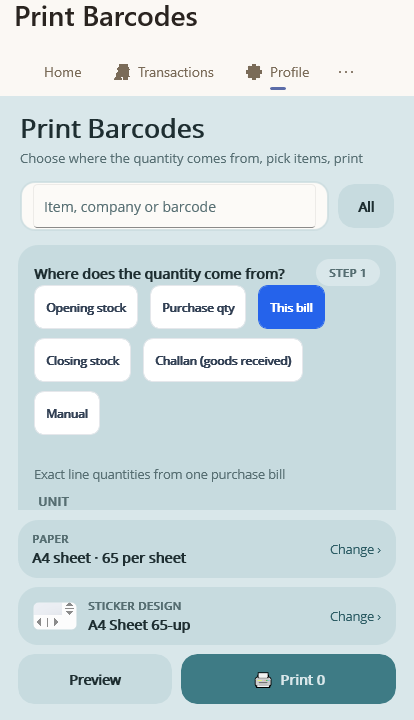
05 / Prepare barcode output on the phoneACTUAL PRODUCT SCREEN
View full size ↗Print Barcodes: where the quantity comes from, then paper, sticker design, Preview and Print.
UNDERSTAND THE COMPLETE WORKFLOW
Take the useful part of your business with you.
Farata brings billing, ordering, bill and stock workflows onto the phone. Choose standalone working on the phone or integration with your Speed Plus PC. Its role depends on who is using it: a retailer placing an order, a salesperson working away from the desk or an owner reviewing connected information. Choose the app edition and connection around that role.
01
For the person placing an order
Search the connected catalogue, choose items and quantities, then submit the request. The receiving business reviews availability and terms before completing supply. A mobile order gives the team a reference to act on; it is not automatically a final invoice.
02
For the person checking a record
Open the relevant connected bill or stock view and identify the company and update context. A known document is a useful way to verify that the mobile account is showing the intended business information.
03
For the person bringing purchases in
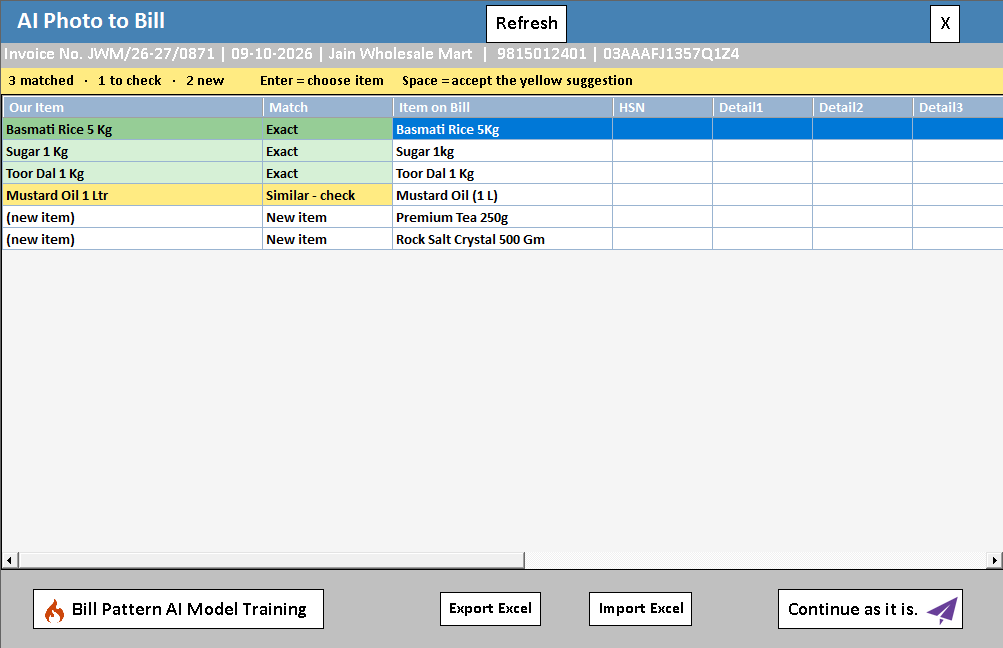
The supported bill-capture workflow helps prepare purchase lines from a supplier document. Review item matches, units and values before accepting them into Speed Plus. The phone makes capture convenient; it does not remove the review.
Are the newer Farata quotation and Touch POS videos also desktop tutorials?
No. Those demonstrations show Farata app workflows. The desktop and mobile interfaces have their own supported features. Confirm the Farata edition, licence and connection needed for quotations, Touch POS, reports or barcode design.
How do I know whether the information is live?
Ask the team to show the update behaviour of your proposed connection. Compare a known transaction on the phone and desktop, then test a change. The chosen mode and successful connection determine when updated information is available.
What should a Farata trial include?
Use one real-world order, one bill lookup and one relevant stock or purchase task. Include the phone, printer if required, user login and connectivity available to the staff member who will actually use it.
A CLOSER LOOK AT THE WORKING
Choose how the phone should work with your business.
Standalone: this phone only
The activation screen offers a standalone mode for a business that works on the phone without a PC. Items, parties and transactions belong to that phone’s company. Choose this deliberately instead of assuming every Farata company automatically synchronises with a desktop.
Integration: connected to Speed Plus
In the PC-connected mode, Pull data from PC brings the supported master data to the phone; Send data to PC transfers supported phone transactions back. Make these actions part of the working routine and verify the received documents. This exchange is different from a live report request.
Speed Connect: two businesses
A retailer can review a wholesaler’s received bill in Pending Bills, inspect its invoice and use Save & import. That supplier-to-retailer exchange is separate from synchronising your own phone with your own PC. It requires the appropriate registered connection.
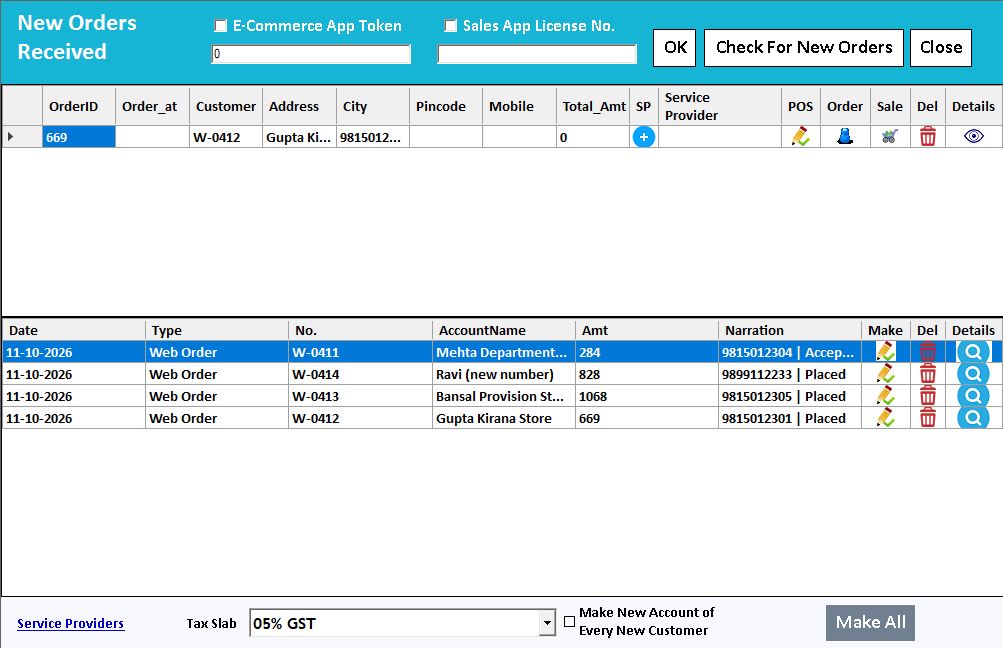
Retailers can place orders through Farata for review in Speed Plus.
02
Keep bills close
Refer to bills and purchase history on the connected mobile app.
03
AI purchase import
Capture a supplier bill and review extracted items, quantities and rates in the purchase workflow.
04
Connected stock
Link received bills with stock updates in the configured retailer workflow.
HOW IT WORKS
Get connected in three steps.
01
Connect your business and Farata account.
02
Place an order or capture a supplier bill on the phone.
03
Review and complete the transaction in Speed Plus.
Before you get started
What setup does Farata need?
Confirm the supported edition, licence, devices and connection requirements with Solver Solutions. Connected workflows need the relevant server and Speed Plus integration configured.
Can I try it with my own business workflow?
Yes—request a demonstration with a small sample of your items and typical transactions. Ask the team to show entry, review and the resulting business records.
What does it cost?
Request a current quotation covering the product, installation, training, hosting and any recurring services needed for your setup.